
From your first lesson to your first record
Add a lesson, then leave a record when it is finished. Lesson Manager keeps the schedule and lesson history together.
A lighter way to keep up with lessons
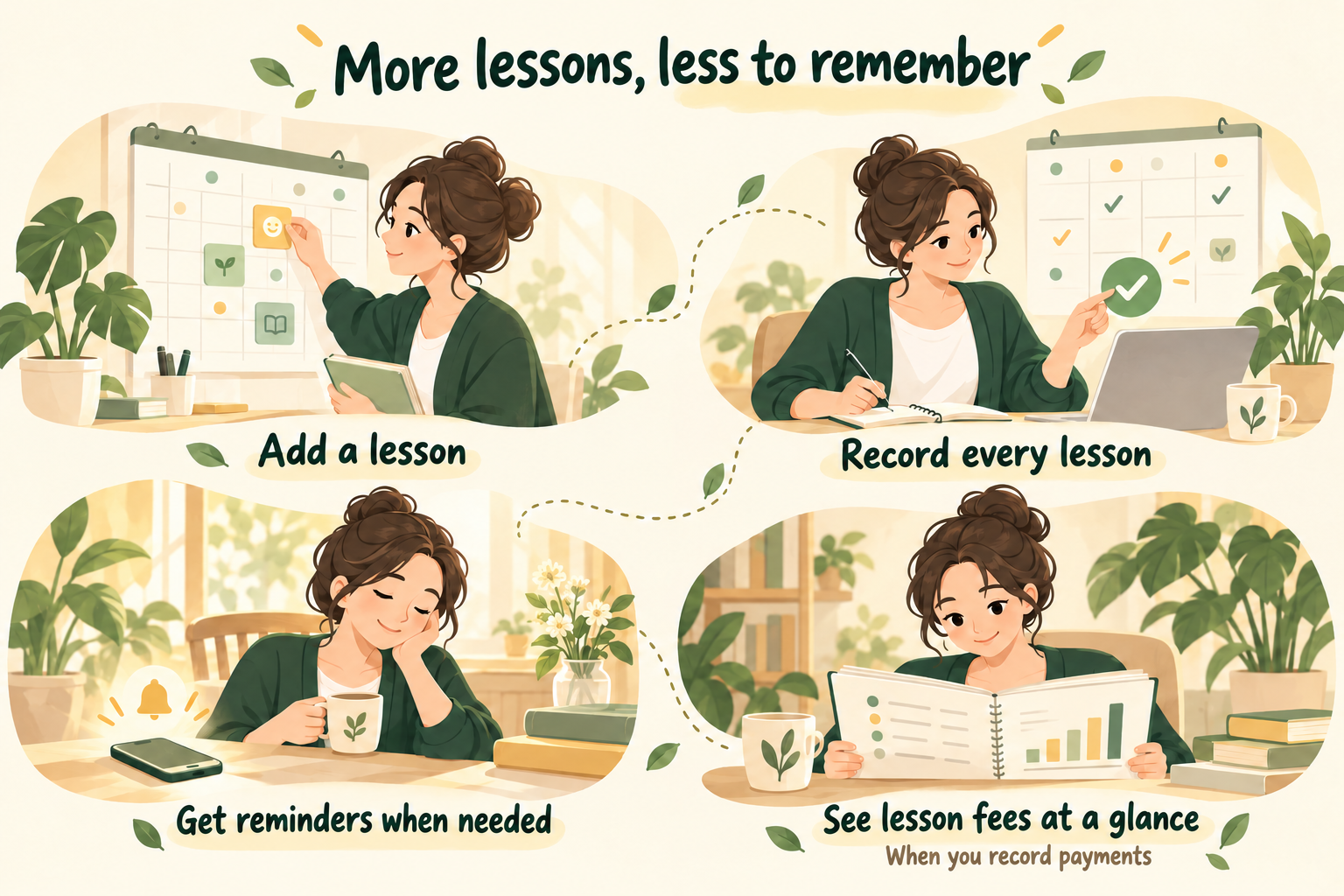
Schedules, completed lessons, and fees can be hard to keep in your head. Let’s start with one piano lesson and build from there.
Take a quick look around
Install and open the app from the App Store or Google Play. These screens show the Android app in English.
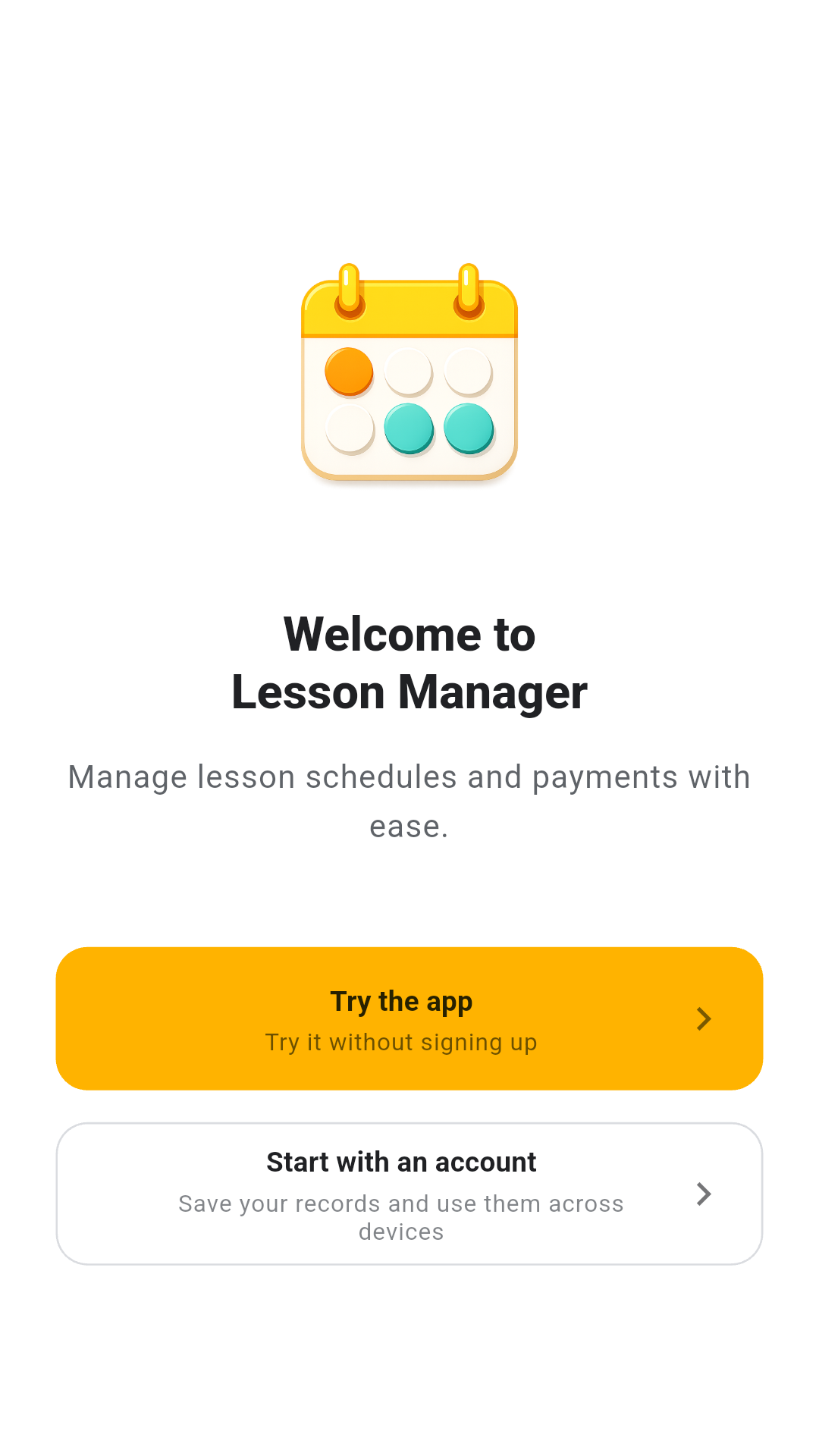
Choose “Try the app” to begin without linking an account. If you already have an account, choose “Start with an account.”
Set up your first lesson
Add one lesson
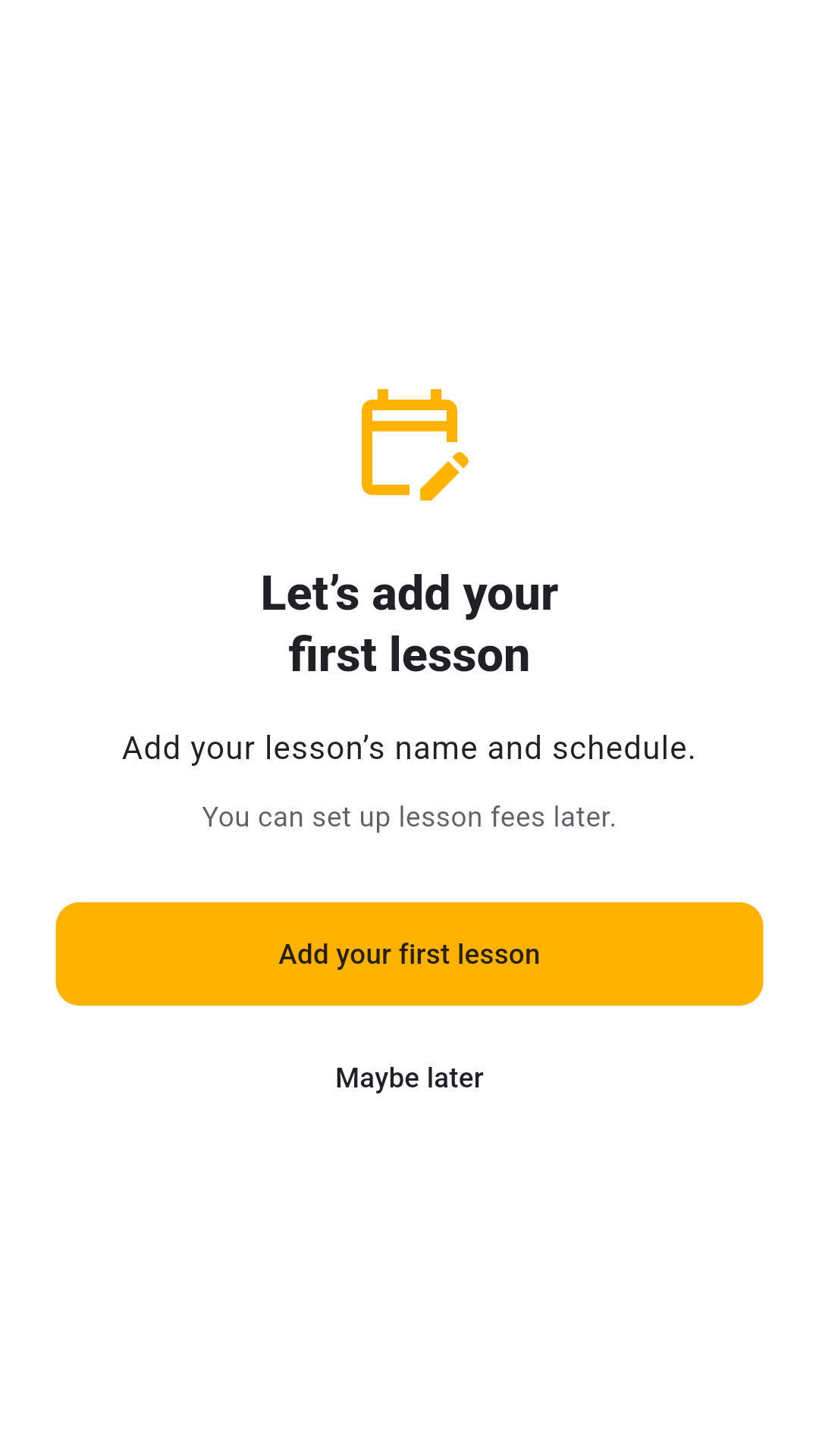
Choose “Add your first lesson.” You can set the lesson fee later.
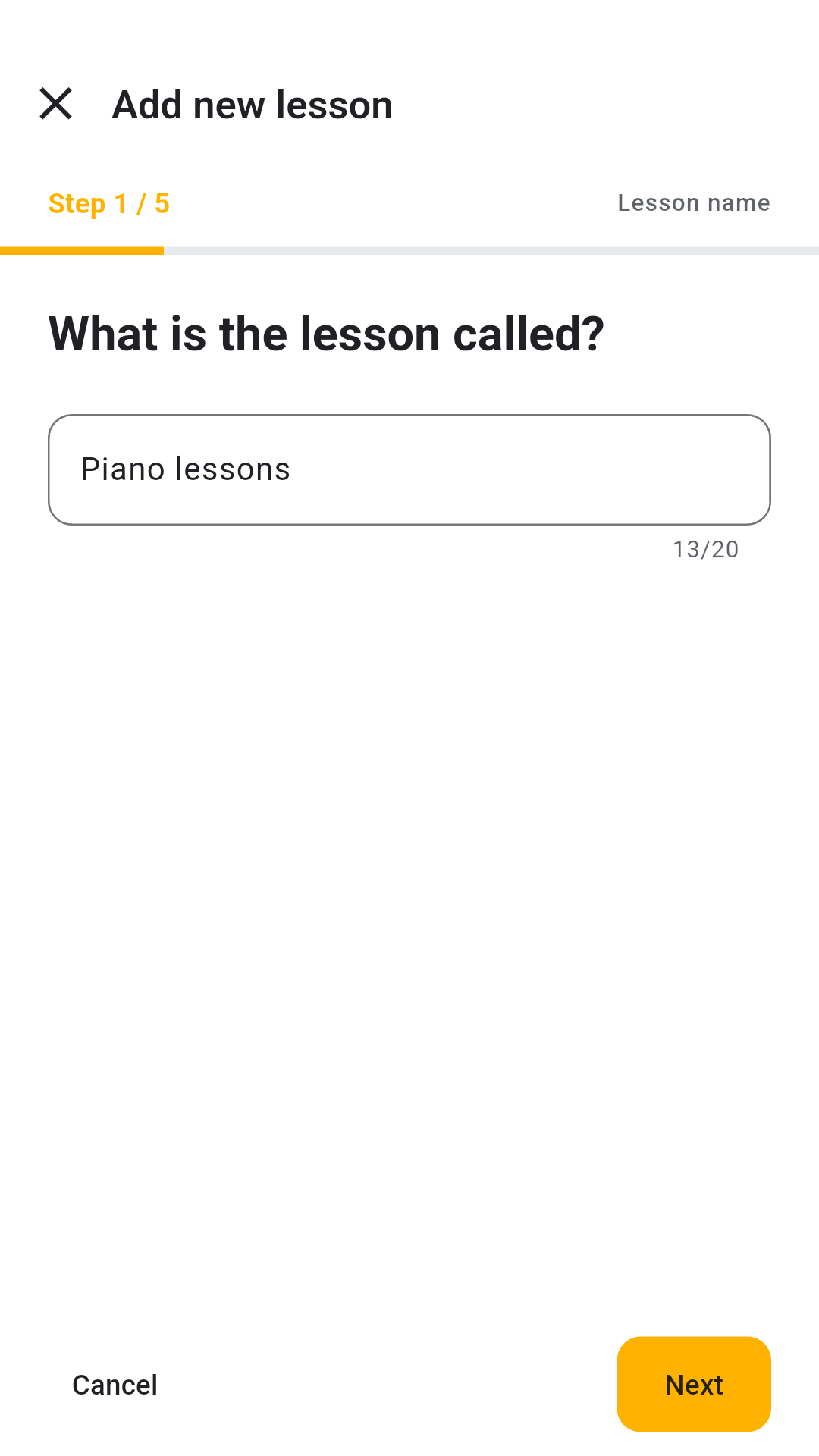
Give the lesson a clear name
Enter “Piano lessons” and tap “Next.” Pick a name that will be easy to recognize in your list.
Choose how the lesson repeats
For a lesson every Saturday at 10:00 AM, choose “Days and times are fixed.” If each lesson has a different schedule, choose “Set each lesson separately.”
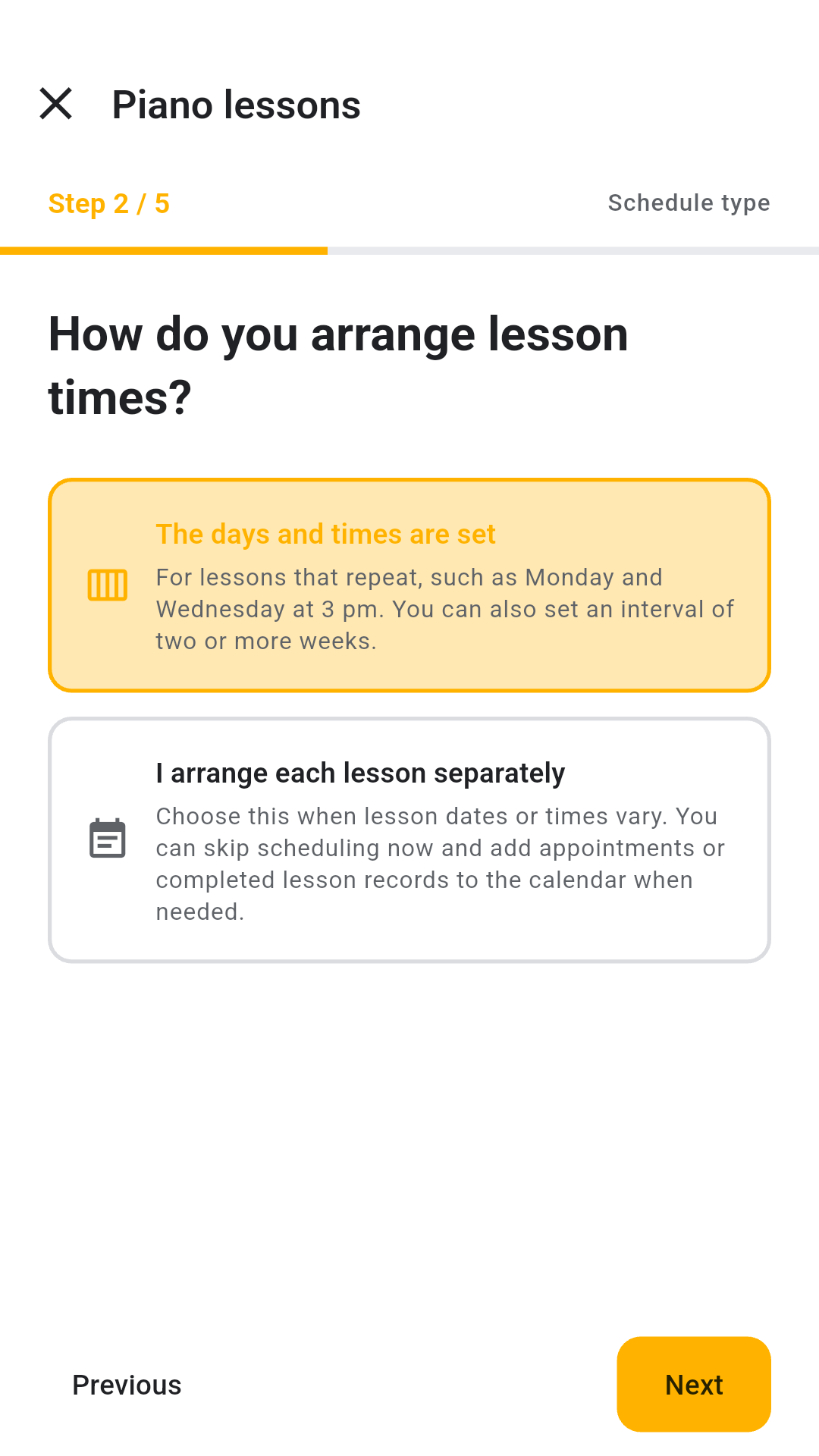
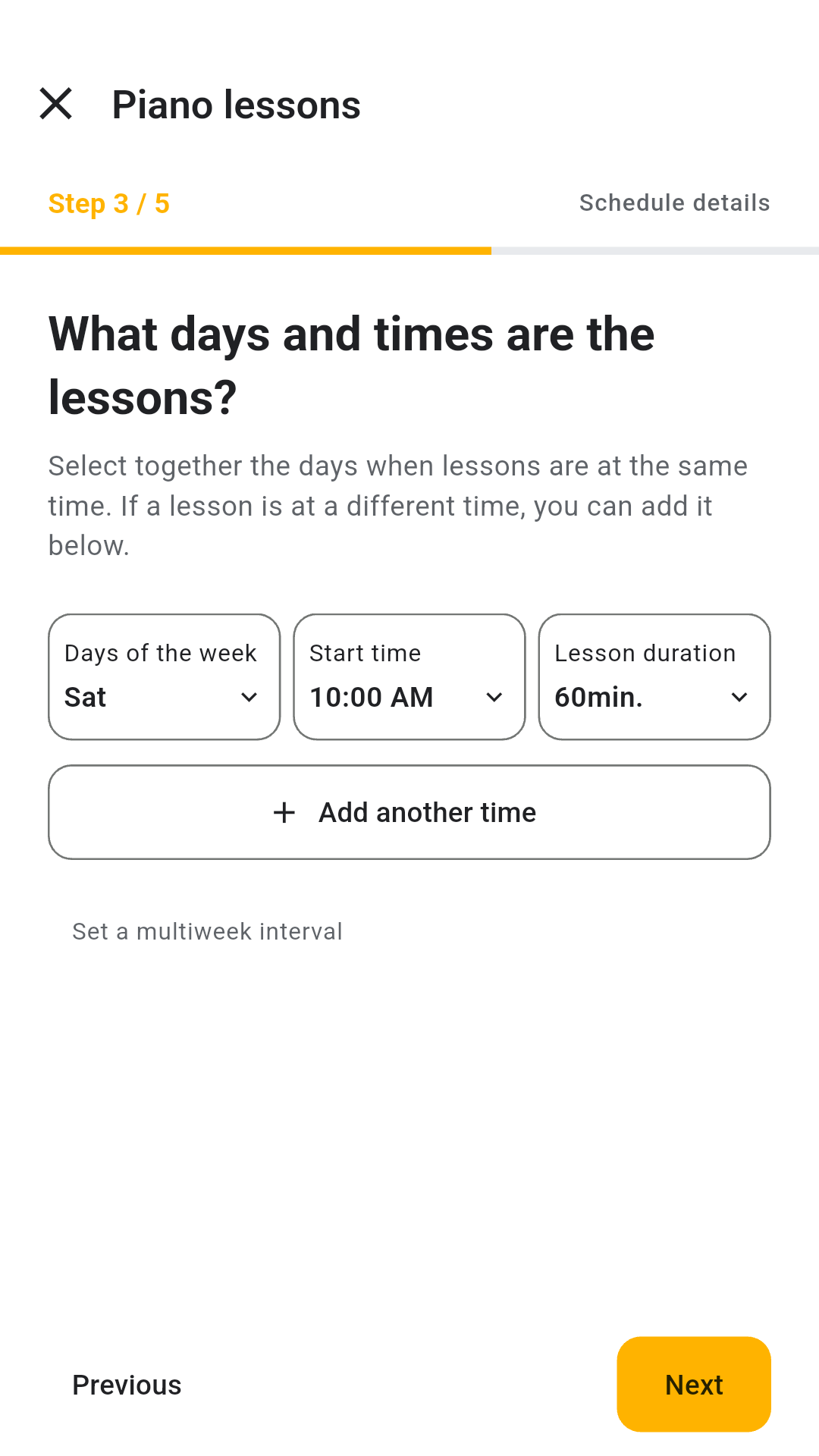
Set the weekly schedule
Choose Saturday, 10:00 AM, and 60 minutes, then tap “Next.”
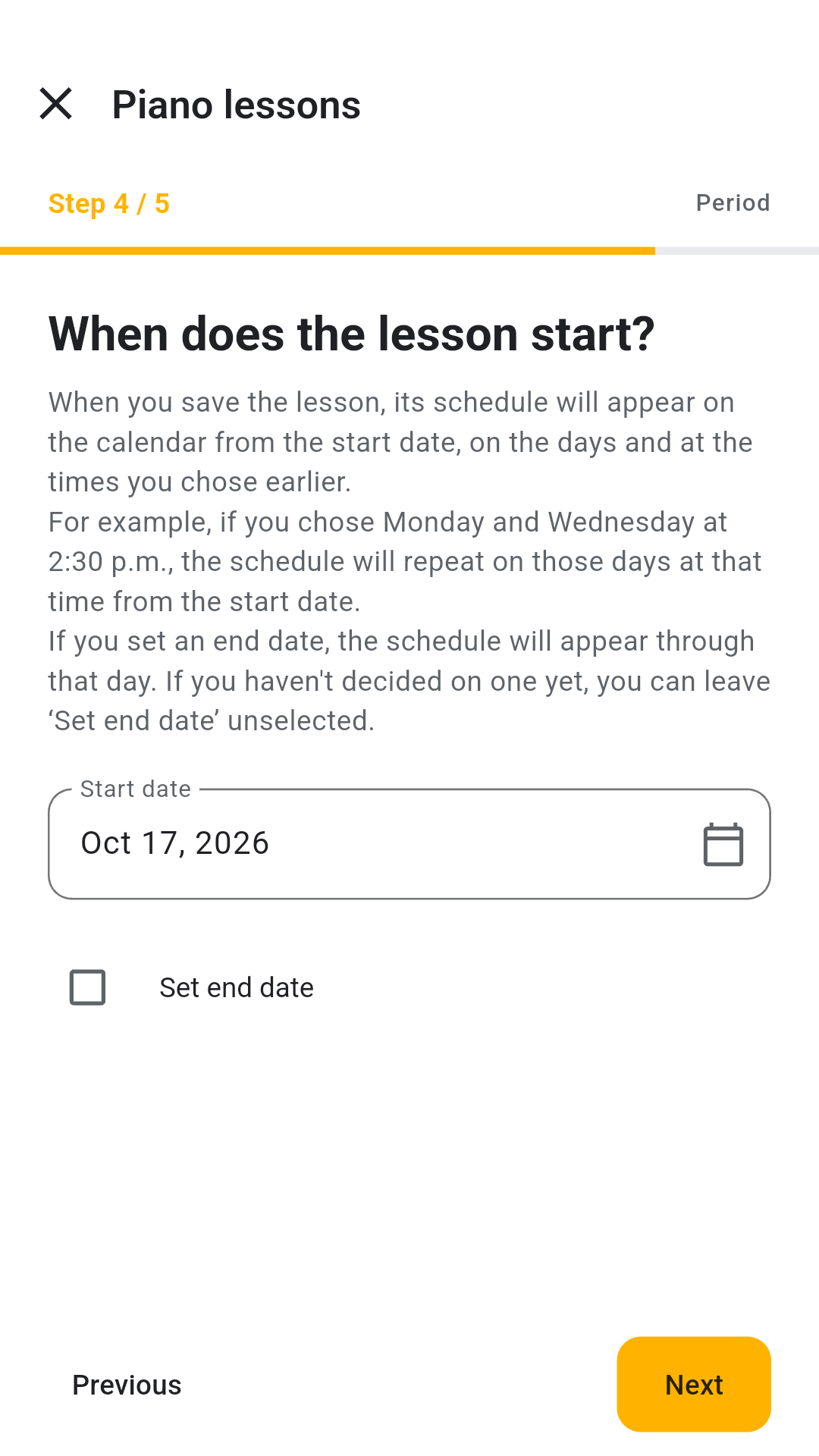
Choose when the schedule begins
Set the start date to October 17, 2026. Leave the end date unset if the lesson has no planned end. The recurring dates appear on the calendar; record a completed lesson after it happens.
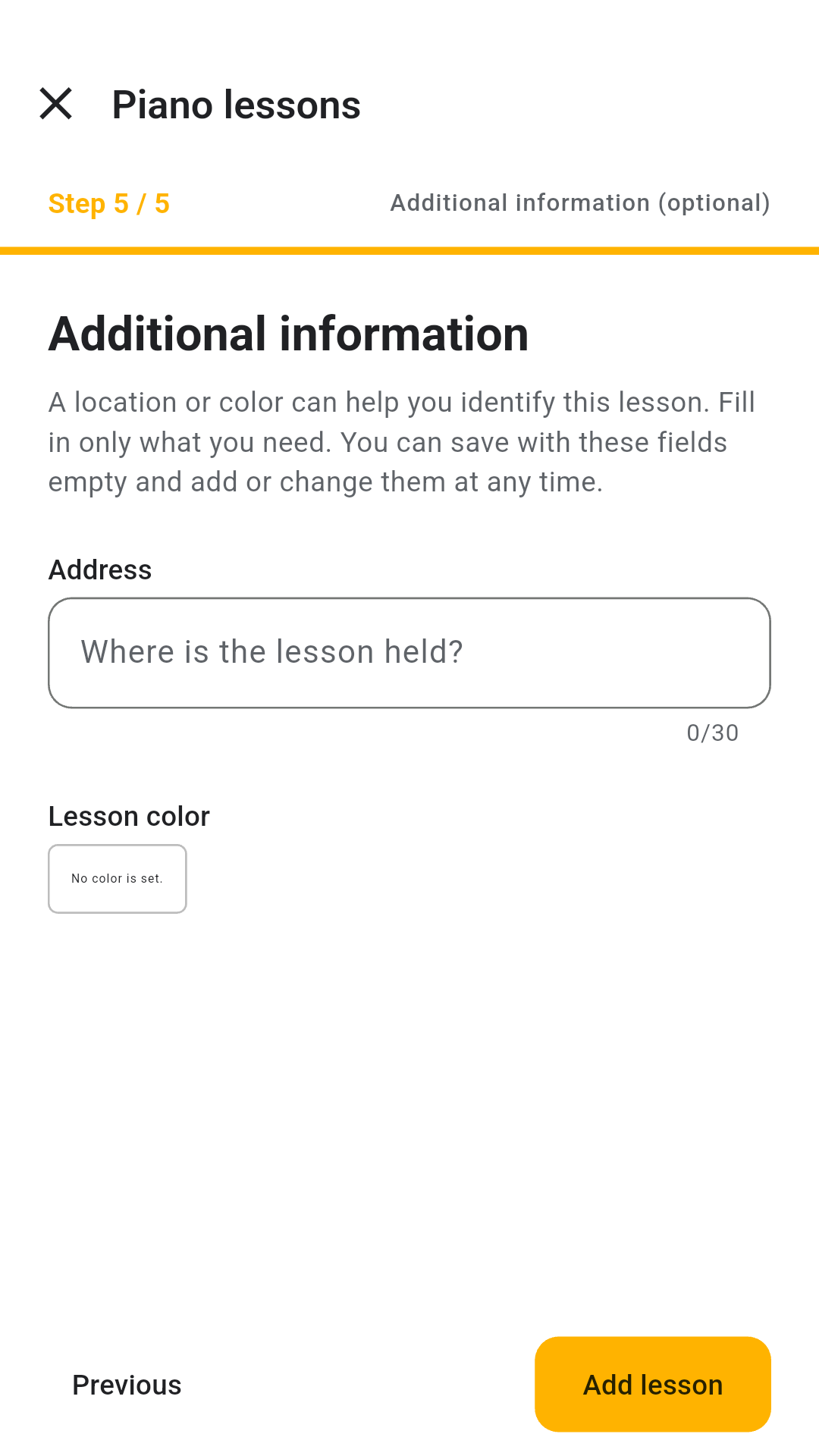
Leave optional details for later
Address and color are optional. Leave them blank and tap “Add lesson.”
Record the lesson
Make the first record with the app’s guide
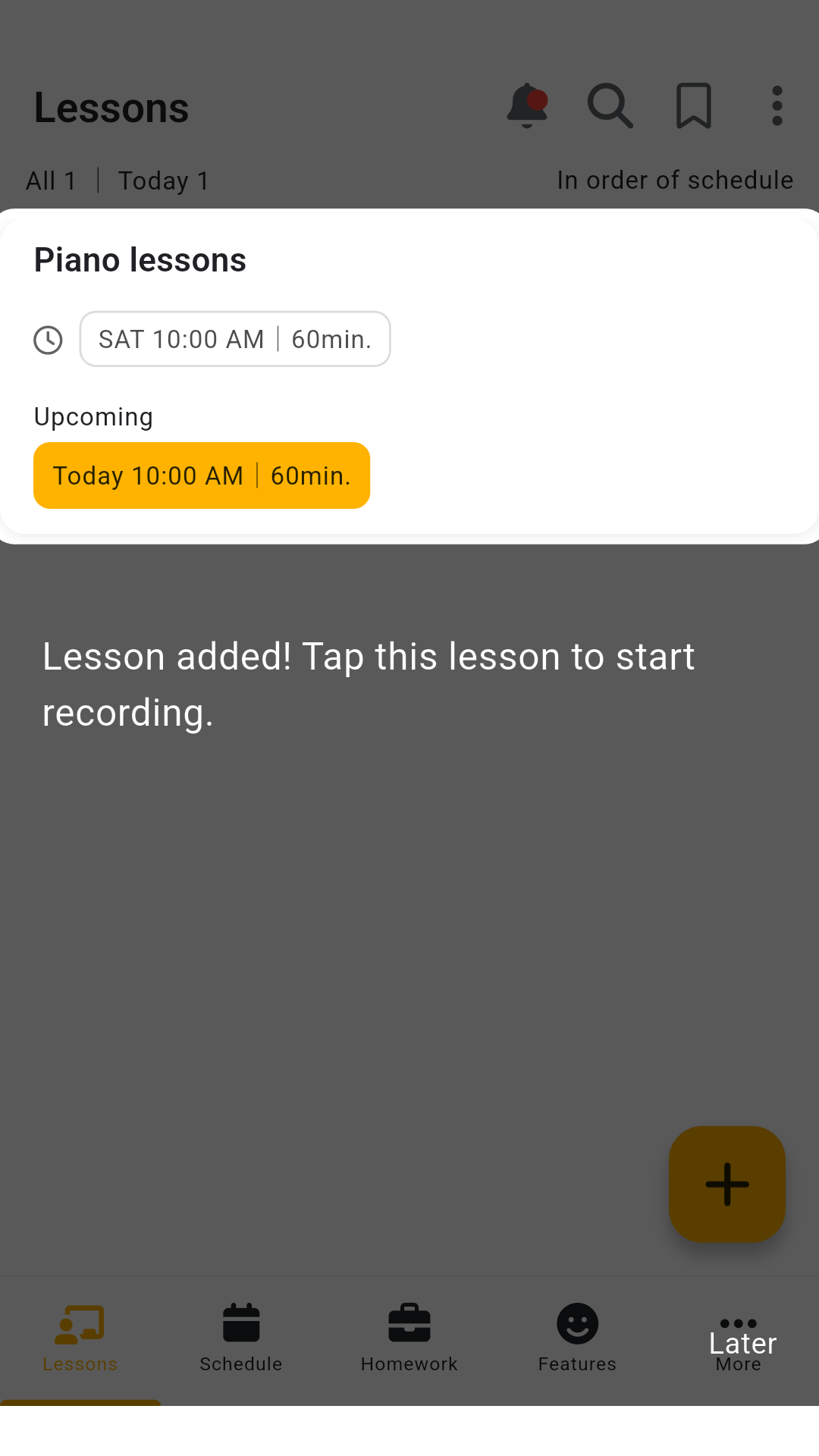
The new Piano lessons card is highlighted. Tap it to open the lesson.
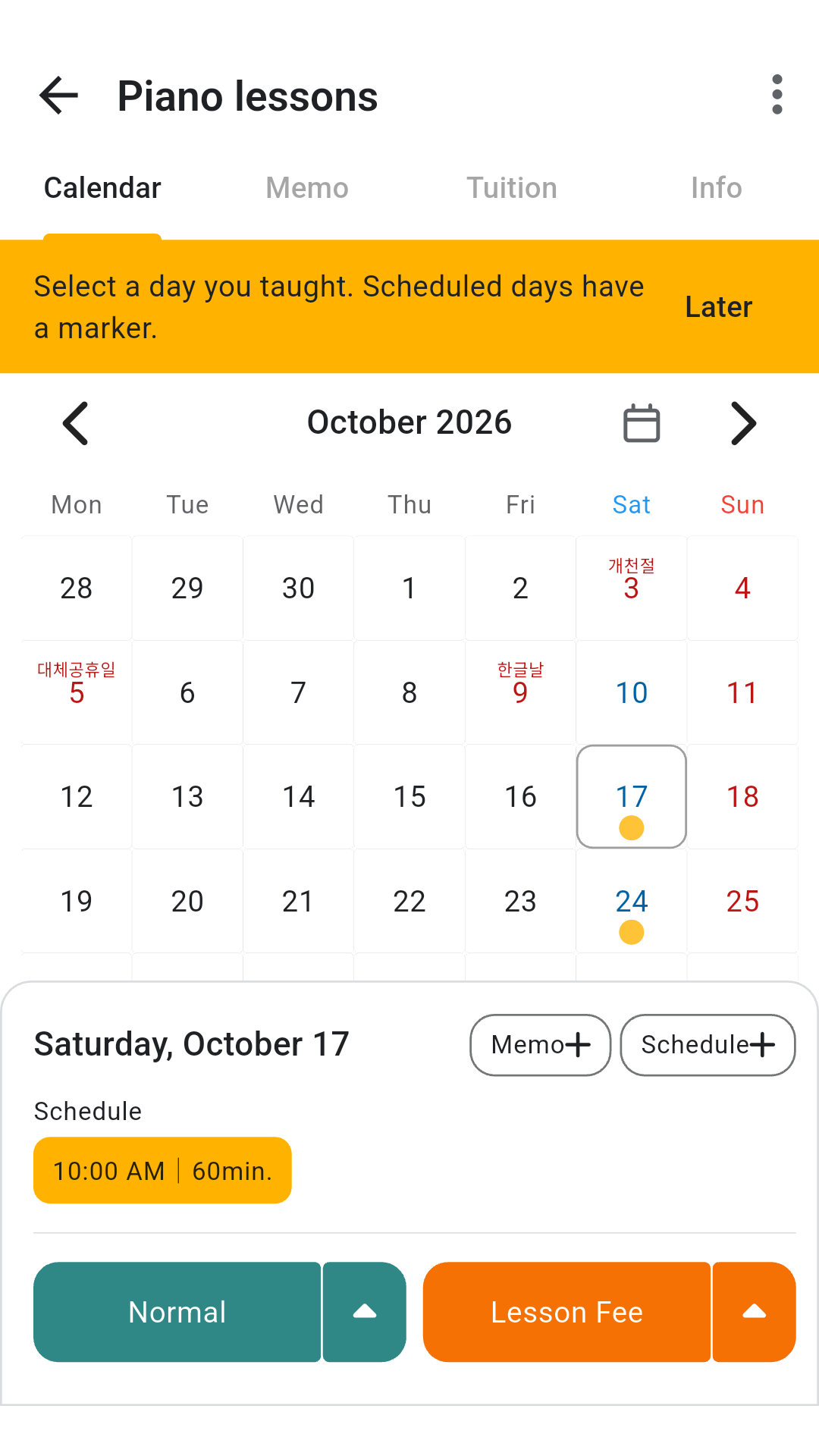
Choose the day you finished the lesson
Select October 17. The schedule below should show 10:00 AM | 60 min. If the lesson has not happened yet, choose “Later” and come back afterward.
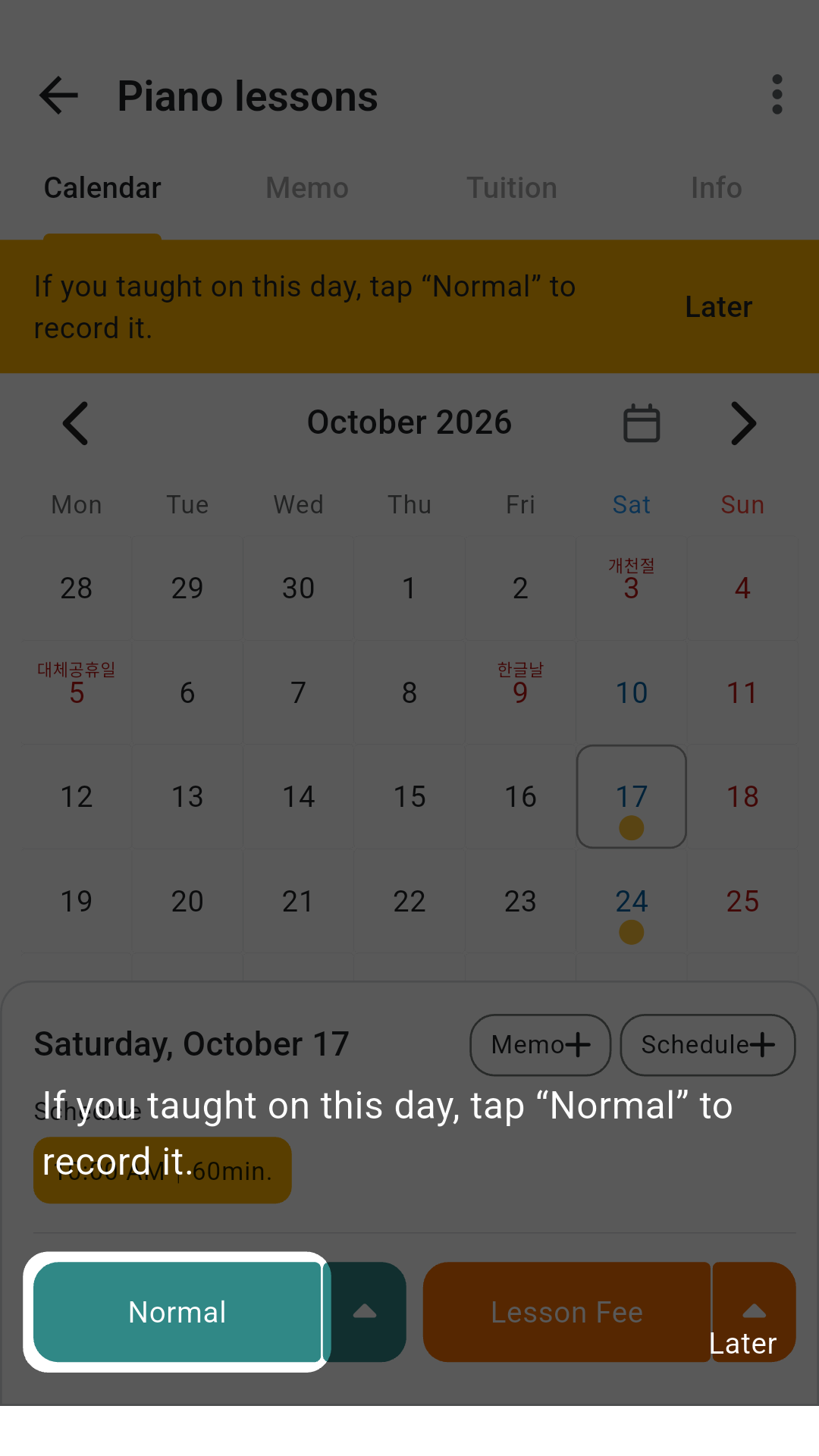
Record a completed lesson
The “Normal lesson” button is highlighted. Tap it after you have finished the lesson.
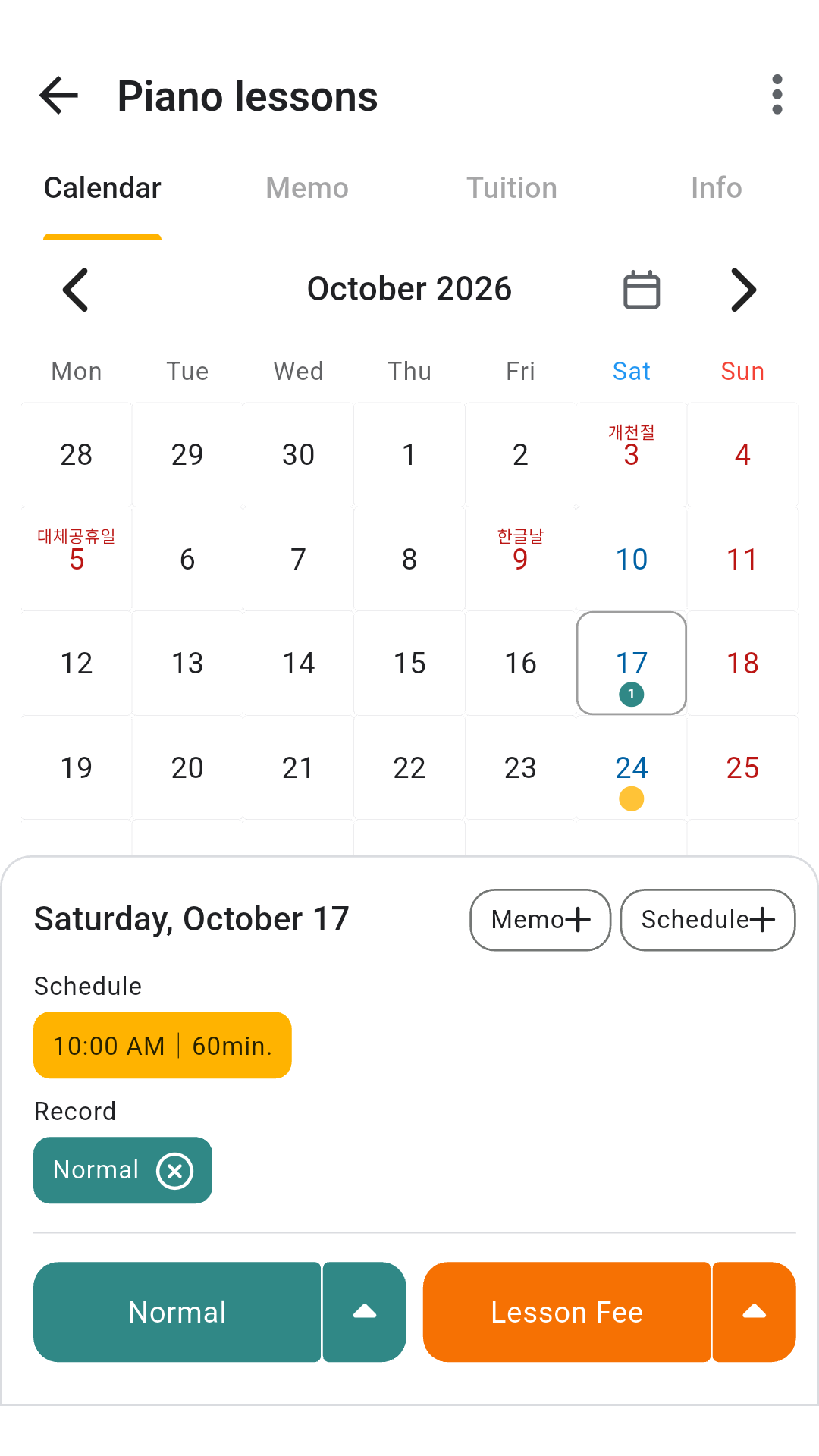
Your first record is saved
“Normal lesson” now appears beside the 10:00 AM schedule, and a marker appears on the calendar. That completes the first guided record.
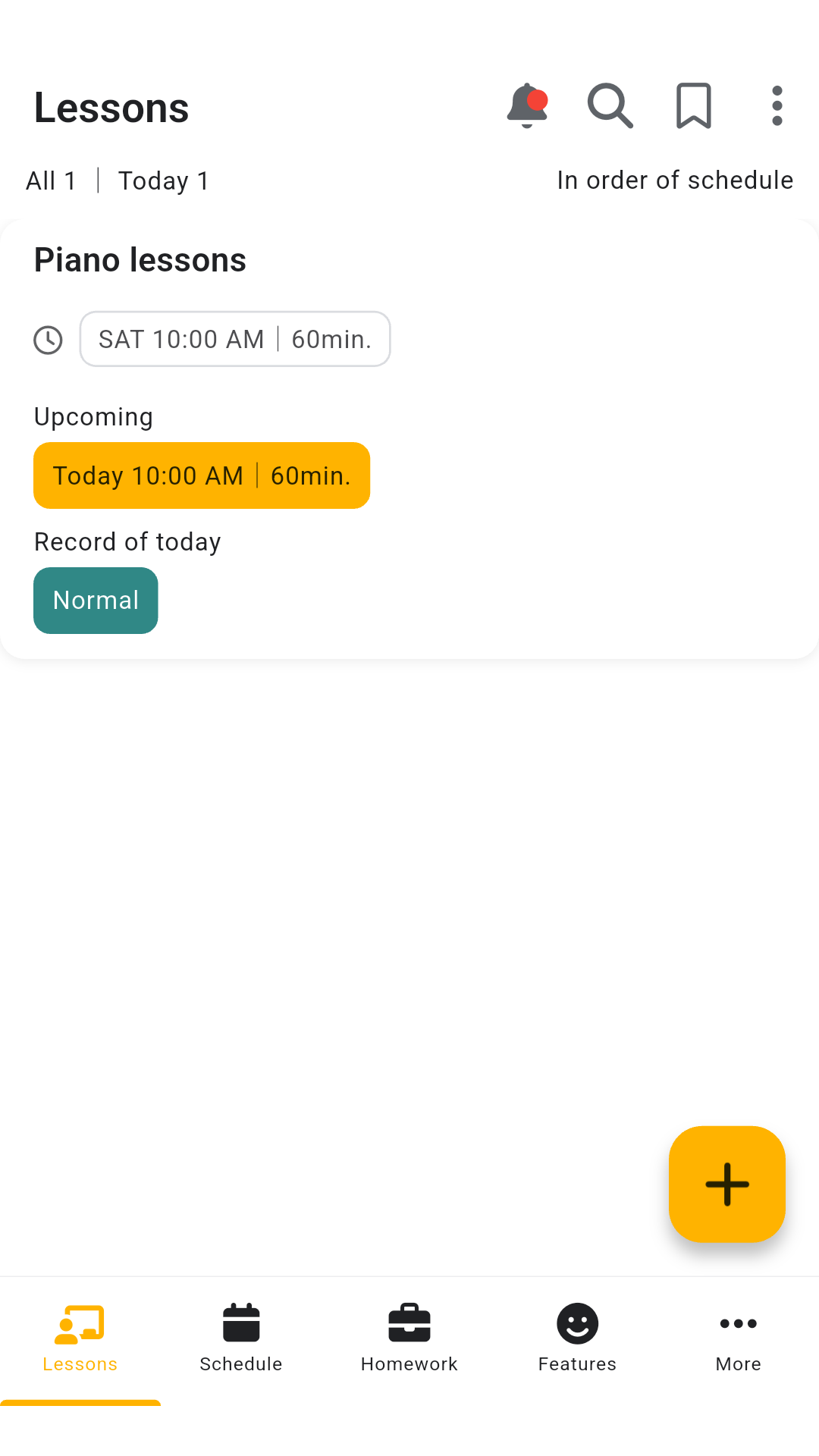
Go back to the list. The lesson card also shows the record for today.
Keep using your trial records
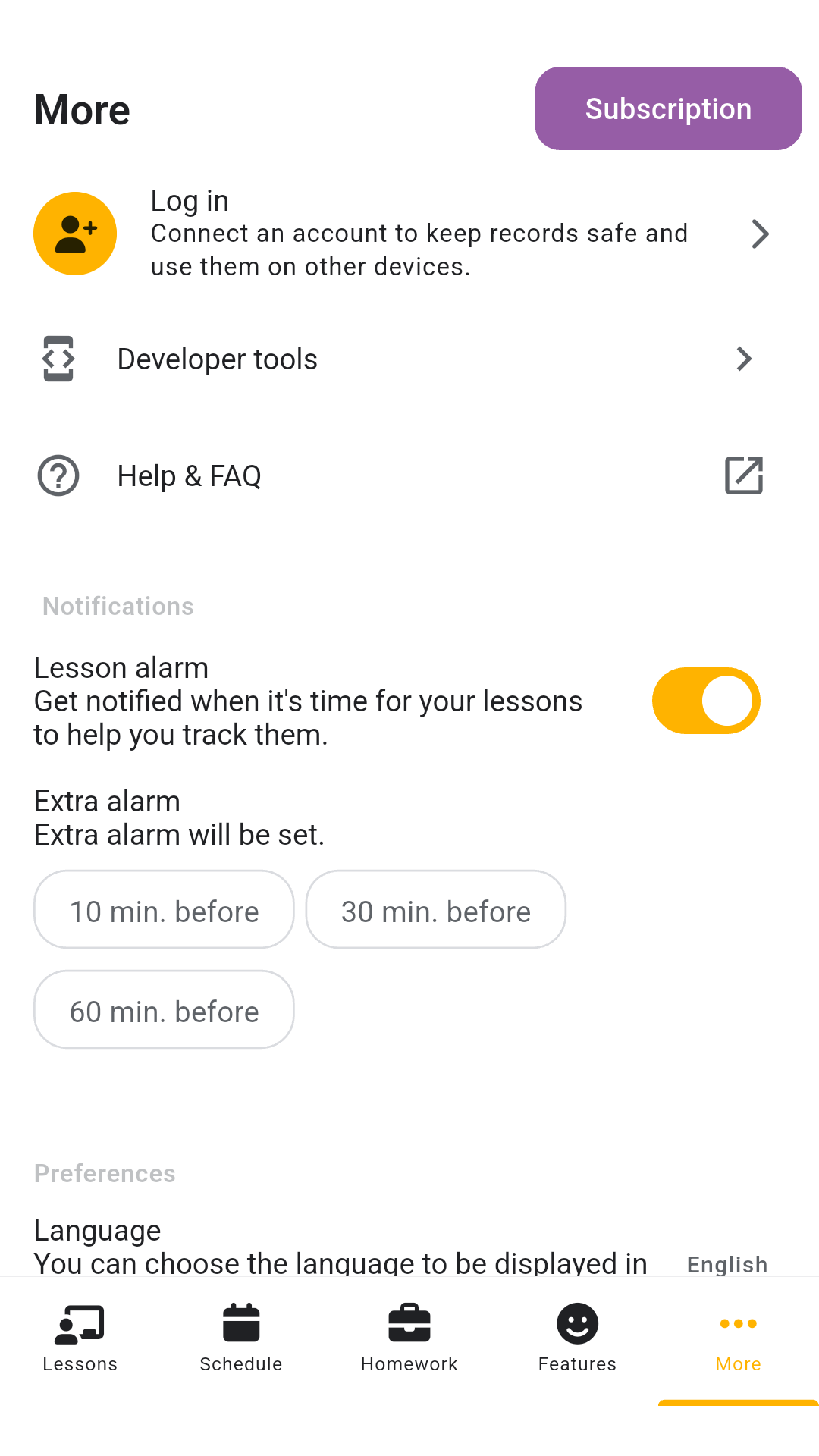
To keep your records and use them on another device, open “More → Log in.”
Choose Google, Apple, or email to link an account. Your trial records stay in the app when you link one.
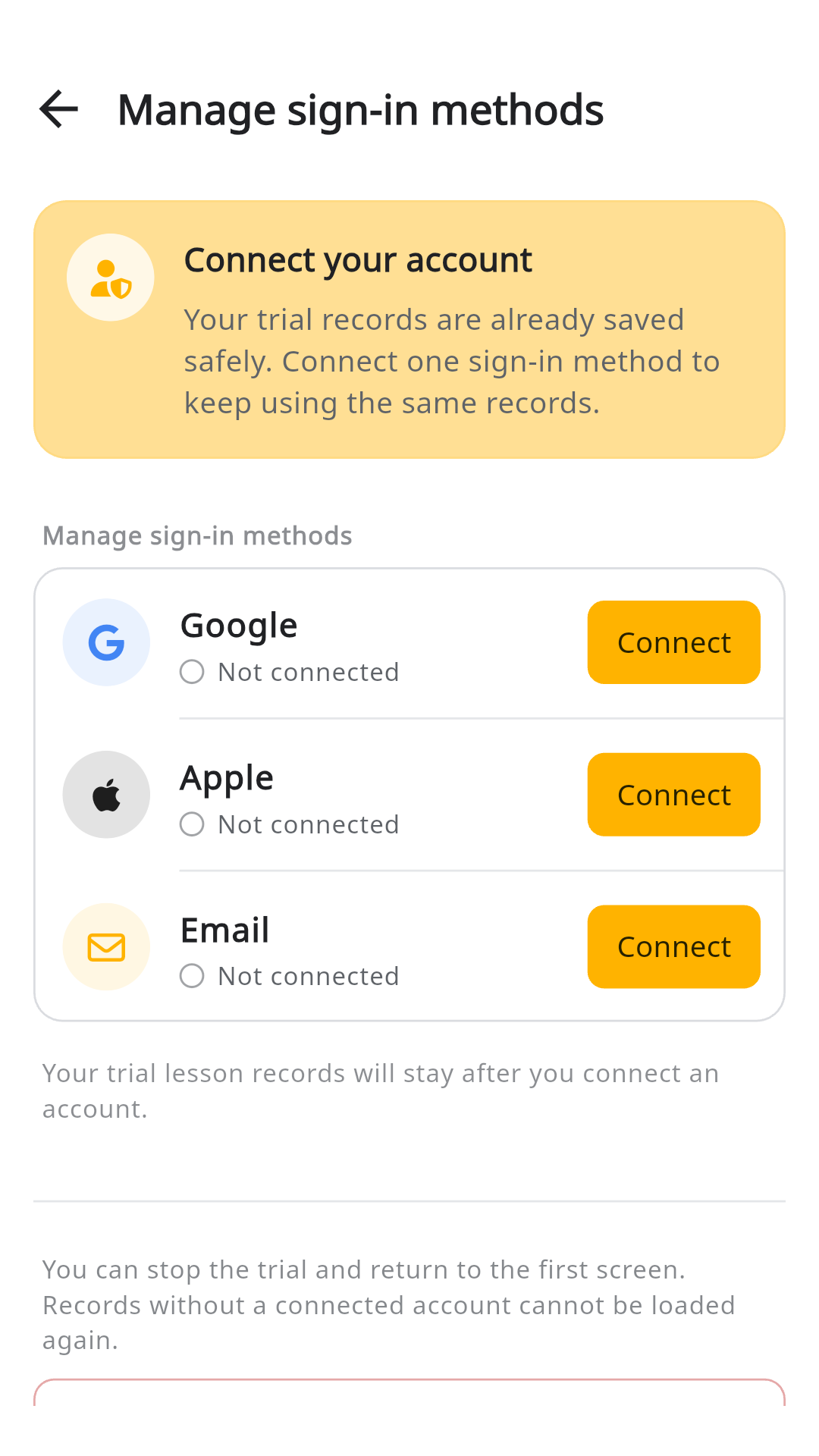
If you choose “End trial and return to start” without linking an account, you cannot restore those records later. Link an account to keep using them.
Screens were captured in the Android app. Labels and layout can vary by device and app version.